
 Transaction Export and Import
|
OmniValue supports export and import of transactions. The export and import can be made in the native OmniValue format or in a text format (e.g. csv). The text format is suitable for data exchange with other applications such as data files from financial institutions (for financial documents) or files from Point of Sale systems (for retail documents). The text format is also possible to configure and customize using import-export scripts (impex).
To export transactions select the Asset containing the transactions and select menu Value->Export (or right click on the Asset and select menu Export). Here, the asset IBM containing Buy, Dividend, and Sell transactions is selected.
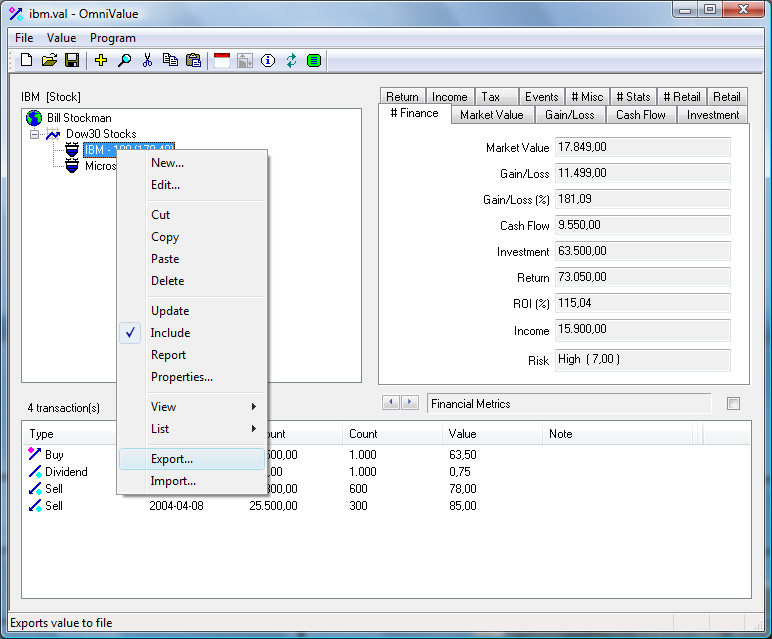
To define an export the Type must be defined. The type can be one of:
If a text type is specified a delimiter has to be defined. The delimiter separates the fields in the text. It can be any printable character or even a sequence of characters. The delimiter can also be a TAB, "\t", or a Line Feed, "\n". In this example a text file export using a semicolon, ";", as delimiter is specified in the dialog.
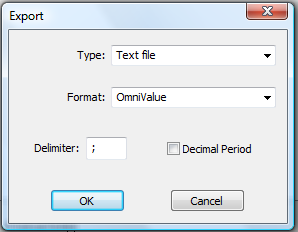
The Format can either be the OmniValue standard format or some other format. Availability of other formats depends on whether they have been defined as OmniValue impex scripts. An impex script makes it possible to adapt virtually any type of data format for import/export to OmniValue. Impex scripts are described in more detail in the chapters below.
After exporting the Buy, Dividend, and Sell transactions in the IBM asset the text file will contain the following:
# OmniValue 4.0 - Transaction Export @ 2011-11-27 12:24:04
# Asset;Transaction;ID;Record Date;Payment Date;Count;Unit Value;Amount;Fee;Portfolio;Note
IBM;Buy;110;2000-12-12;2000-12-12;1000;63,5;*;0;Dow30 Stocks;
IBM;Dividend;510;2001-04-08;2001-04-08;*;0,75;*;0;Dow30 Stocks;
IBM;Sell;310;2002-04-08;2002-04-08;600;78;*;0;Dow30 Stocks;
IBM;Sell;310;2004-04-08;2004-04-08;300;85;*;0;Dow30 Stocks;
The first lines in the text file contain the header with captions for each column. The header line starts with the number sign (#). The number sign (or hash mark) indicates that the line is a comment and that it should not be parsed by a software application reading the file. The wildcard character (*) signifies that the data in the field is either not specified or redundant given the other fields.
The transactions are listed in chronological order, one transaction per line. The data fields for a transaction are separated by the delimiter specified in the dialog (here a semicolon).
| Column | Data | Description |
| 1 | Asset | The name of the asset or security containing the transaction. |
| 2 | Transaction | Type of transaction. |
| 3 | ID | ID for transaction. The transaction is identified using a OmniValue ID. A complete list of all IDs for all predefined transactions in OmniValue is given in chapter 1 |
| 4 | Record Date | Record date for the transaction. |
| 5 | Payment Date | Payment date for the transaction. |
| 6 | Count | Transaction unit count. |
| 7 | Unit Value | Transaction value per unit, i.e. the price for one unit. |
| 8 | Amount | Total transaction amount. |
| 9 | Fee | Transaction fee. |
| 10 | Portfolio | Name of portfolio to which the asset belongs. |
| 11 | Note | Transaction note. |
Import of transactions follows the same steps as described in the chapter for transaction export. To import transactions into an Asset select menu Value->Import (or right click on the Asset and select menu Import). If the import is in text format a delimiter must be specified.
The following general rules apply for transaction import in the standard format:
If OmniValue fails to import a transaction a dialog will be displayed showing which line in the import that failed.
Transactions can be imported on a different format than the standard format. This is accomplished through the definition of import/export scripts (impex). In the following it is demonstrated how transactions from a financial institute can be imported into an OmniValue document using an Impex script.
The financial statement describes buy, sell, dividend, and new issue transactions in two different stocks (Swedbank, AstraZeneca):
# Financial statement from bank
Date;Description;Security;Count;Price;Amount;
2009-03-17;Purchase;Swedbank;500;24,00;-12099,00;
2009-05-20;Purchase;Swedbank;500;56,25;-28224,00;
2009-08-03;Purchase;AstraZeneca;100;340,00;-34099,00;
2009-09-11;Dividend;AstraZeneca;100;4,90;490,00;
2009-10-14;New issue;Swedbank;0,5;39,00;;;
2010-03-12;Dividend;AstraZeneca;100;13,81;1381,11;
2010-09-10;Dividend;AstraZeneca;100;5,69;568,88;
2011-01-20;Sales;AstraZeneca;-100;312,70;31171,00;
2011-04-01;Dividend;Swedbank;1500;2,10;3150,00;
The format of the transaction statement is different from the OmniValue standard format. The OmniValue ID for a transaction is not defined in the statement, and the order of columns is not the same. In order to be able to import the transactions in the statement into OmniValue an impex script is needed which converts the bank format to OmniValue terminology. The following Impex script does the conversion of formats:
# OmniValue impex script
delimiter=;
decimal=,
columns=3;1;9;4;5;6
transaction=110;Purchase
transaction=210;New issue
transaction=310;Sales
transaction=510;Dividend
The fields in the impex script are:
| Impex Field | Description |
| delimiter | The character (or sequence of characters) used to delimit fields in the data file. |
| decimal | The decimal character in the data file. |
| columns | Semicolon separated list of of numbers describing the order and content of fields in the data file. Each number corresponds to a transaction attribute as described below. |
| transaction | Mapping between OmniValue transaction id and the text string matching the transaction id at the specified column in the data file. |
The numbers in the column row in the Impex script corresponds to transaction attributes as described in the following table:
| Impex Column | Transaction Attribute |
| 0 | Field is ignored. |
| 1 | Transaction type or identifier (the content of this field is matched against the transaction mappings in the impex script). |
| 2 | Transaction record date. |
| 3 | Transaction payment date. |
| 4 | Transaction unit count. |
| 5 | Transaction value per unit, i.e. the price for one unit. |
| 6 | Transaction total value. |
| 7 | Transaction fee. |
| 8 | Transaction note. |
| 9 | Name of asset. |
| 10 | Name of portfolio. |
In order to activate the script it must be saved in a file with the extension ".impex" and put in the folder for local OmniValue application data:
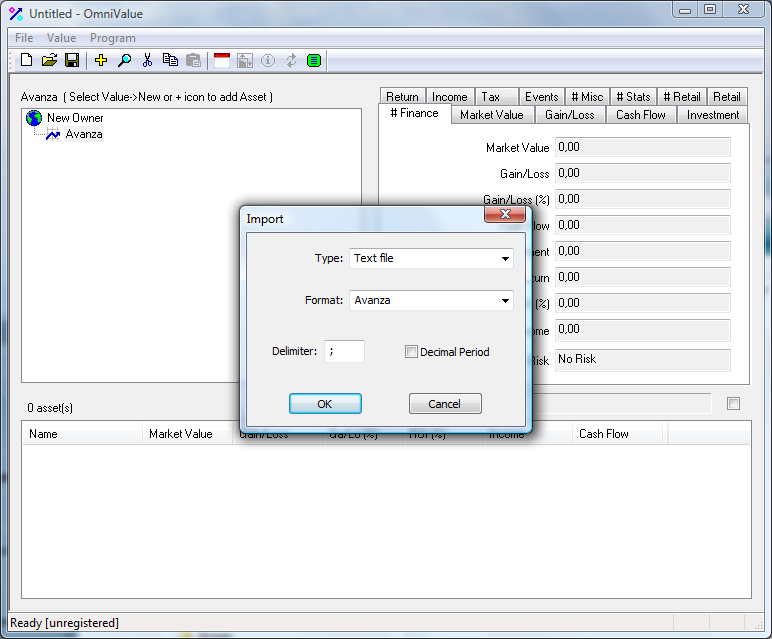
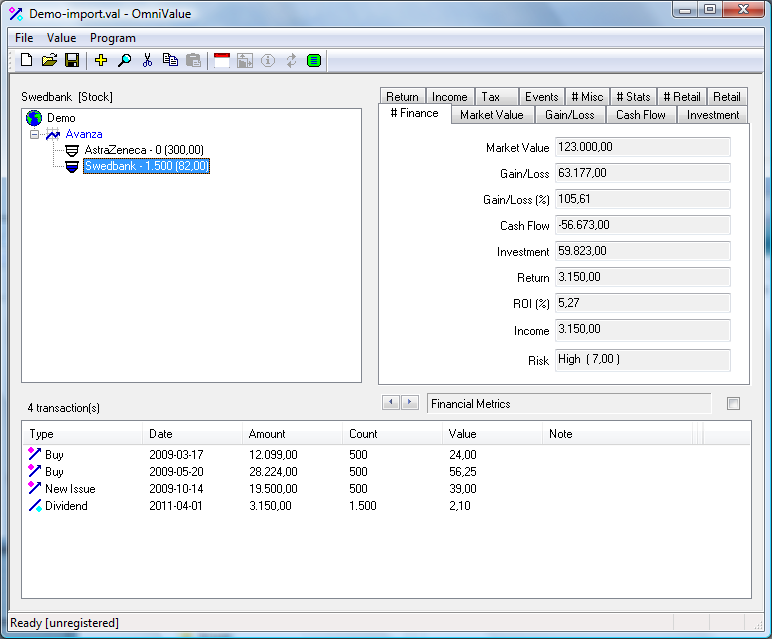
After import of the transactions the document will contain the following data:
© Milliplex